Home › Install
Get ZenUML in Your Confluence in 2 Minutes
Install directly from the Atlassian Marketplace — no dev setup, no credit card. The Lite plan is free forever.
Atlassian Marketplace verified Forge-native — no external servers required Free Lite plan, no credit card needed Confluence Cloud only
Install Lite — Free · View Full Plan
Six steps from zero to your first diagram
No developer skills required. If you can edit a Confluence page, you can create a diagram.
Go to the Atlassian Marketplace
Open marketplace.atlassian.com and search for ZenUML. You can search directly for "ZenUML Lite" (free) or "ZenUML for Confluence" (Full paid plan). The listing is published by ZenUML and shows the Atlassian verified badge.
Choose Lite (free) or Full (paid)
Lite is free forever — all six diagram types, up to 100 macros per space, no time limit. Full removes the per-space macro limit and adds priority support. Diagram export is PNG on every plan; Confluence's own page export (Word/PDF) includes a snapshot of the diagram wherever it appears on a page.
Click "Try it free" / "Get app" and approve Forge permissions
Atlassian will display the Forge permission scopes the app requests before you confirm installation. ZenUML requests:
- Read Confluence content (pages, spaces) — to display diagrams stored as custom content
- Write Confluence content — to save and update diagram data when you publish
No scopes outside Confluence content are requested. Your diagram data is stored as Confluence custom content — it lives inside your Confluence site, not on a third-party server.
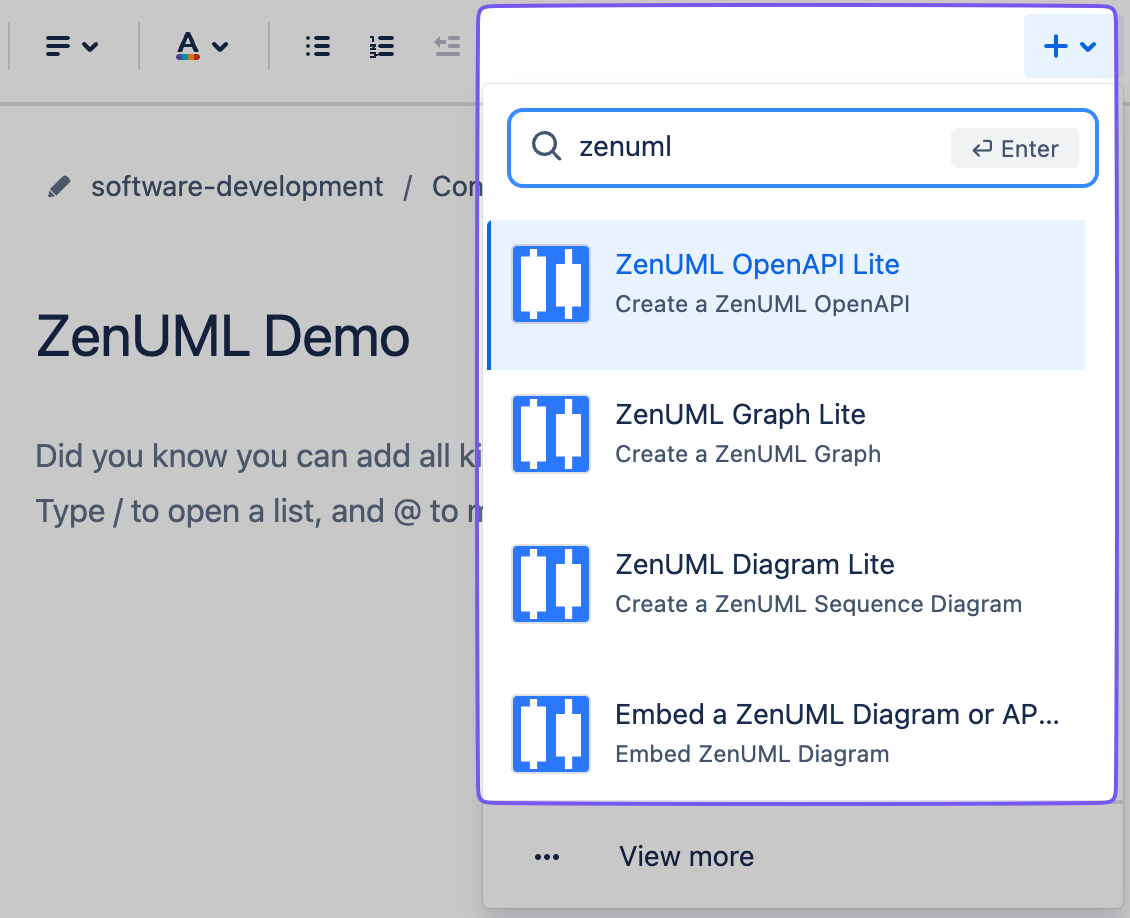
Open a Confluence page in edit mode and type /diagram
Navigate to any Confluence page, click Edit to enter edit mode, then click in the page body and type /diagram. The ZenUML — Diagram as Code macro will appear in the insert menu. Click it to open the diagram editor.
Choose your diagram type
The editor opens a type picker. Six options are available:
- Sequence — ZenUML DSL for sequence / interaction diagrams
- Mermaid — flowcharts, ER diagrams, Gantt charts, and more
- DrawIO — full visual graph editor (drag-and-drop)
- PlantUML — class, component, state, and activity diagrams
- OpenAPI — render any OpenAPI/Swagger spec as interactive docs
- Embed — embed an existing ZenUML, DrawIO, or API diagram
Write or generate your diagram and click Publish
Type your diagram code (or use a template) in the left-hand editor panel. The diagram renders live on the right. When you are happy with the result, click Publish. The diagram is saved to your Confluence page as custom content and is visible to anyone with page-view permissions.
What permissions does ZenUML need?
ZenUML is a Forge-native app. Atlassian's Forge platform enforces permission scopes at the platform level — the app can only do what the scopes allow.
ZenUML reads page context so it can load diagram data stored as custom content on that page. It never reads or indexes content outside pages where a ZenUML macro is present.
When you click Publish, ZenUML saves your diagram code as Confluence custom content (a first-class Confluence data type). This is the only write operation — it does not modify page text, titles, or any other page content.
Diagram source code is stored inside your Confluence site as custom content, and is never sent to ZenUML's Cloudflare Workers backend, which handles license checks and optional telemetry (plus, in some cases, relaying the rendered PNG export backup on its way to Confluence — see the FAQ for details). Rendering itself happens client-side in the browser for ZenUML, Mermaid, DrawIO, and OpenAPI; PlantUML is the exception, since its source is sent to the public plantuml.com rendering service to produce the image.
ZenUML does not request access to Jira, Bitbucket, user profiles, email addresses, or any Atlassian product outside the Confluence content API.
Start with Lite, upgrade when ready
Every ZenUML feature is available on both plans. The difference is scale and support.
Free forever
Lite
$0 / month
No credit card. No expiry.
- All 6 diagram types
- Up to 100 macros per space
- Full diagram editor (code + visual)
- Confluence Cloud only
- Community support
Paid plan
Full
Marketplace pricing
Per-user Atlassian billing. 30-day free trial.
- Everything in Lite
- Unlimited macros per space
- The Diagramly AI assistant in the editor
- Priority email support
- SLA for enterprise customers
Upgrading from Lite to Full preserves all your existing diagrams — no migration needed.
Who installs ZenUML?
Installation scope depends on your Confluence role. Both paths are fully supported.
🏢 Confluence Site Admin
A site admin (Confluence administrator) can install ZenUML for the entire Confluence site. Once installed at site level, the /diagram macro is available in every space immediately — no per-space action needed.
Install path: Confluence Settings → Manage apps → Find new apps → search ZenUML.
📁 Space Admin
A space admin can install Marketplace apps scoped to their own space if the Confluence site allows user-installed apps. This gives teams autonomy to add ZenUML without waiting for a global admin.
Install path: Space Settings → Apps → Find apps → search ZenUML. (Option visibility depends on site-level permissions set by the site admin.)
Not an admin? Share this page with your Confluence site admin and ask them to install ZenUML Lite — it takes under 2 minutes and is completely free. Once installed, every editor on the site can insert diagrams immediately.
Installation questions
Does ZenUML work on Confluence Server or Data Center?
ZenUML for Confluence is a Confluence Cloud-only app built on Atlassian's Forge platform. It is not compatible with Confluence Server or Confluence Data Center. If you are on Server or Data Center, the app will not appear as an installable option in your Marketplace.
Do I need a credit card to install the Lite plan?
No. The Lite plan is free with no trial period and no credit card required. Atlassian handles billing for all Marketplace apps — you will only be asked for payment details if you choose to upgrade to the Full paid plan, which starts a 30-day free trial.
How do I verify the installation was successful?
After installation, navigate to any Confluence page and enter edit mode. Type /diagram in the page body. If the ZenUML macro appears in the suggestion list, the installation is working. You can also confirm under Confluence Settings → Manage apps — ZenUML should appear as "Enabled".
What happens to my diagrams if I uninstall ZenUML?
Your diagram source code is stored as Confluence custom content, which is part of your Confluence data. If you uninstall ZenUML, the macro placeholders remain on your pages but will no longer render. If you reinstall ZenUML, all diagrams will render again from the stored custom content — nothing is lost. Atlassian's data retention policy applies to all custom content on your site.
Can I switch from the Lite plan to the Full plan without losing diagrams?
Yes. Upgrading from Lite to Full is a plan change within the same Atlassian Marketplace app — it does not require uninstalling and reinstalling. All your existing diagrams are preserved exactly as they are. The upgrade takes effect immediately after you confirm billing in the Atlassian admin panel.
Ready to install?
Install ZenUML Lite for free in under 2 minutes — no credit card, no expiry. Upgrade to Full any time.
Install Lite Free on Marketplace · View Full Plan
Questions? Visit our FAQ or contact support.